



Have you ever noticed white spots or bright patches on the display panels of your phone, LED screen, computer monitor, or other devices? Don’t worry—this doesn’t necessarily mean the display is damaged. Depending on the size of the affected area, you can try fixing the white spots yourself. If the affected area is too large, we recommend contacting the manufacturer for technical support.
Next, read on to learn what causes white spots and how to fix them, helping you quickly restore a flawless, healthy screen.If you want to quickly learn ways to fix white spots, you can also check out the YouTube video below:
Which Displays Are Prone to White Spots?
White spots are a common issue across various display devices, though their appearance and causes differ depending on the type of display. Here are several common types of white spots on displays:
LCD
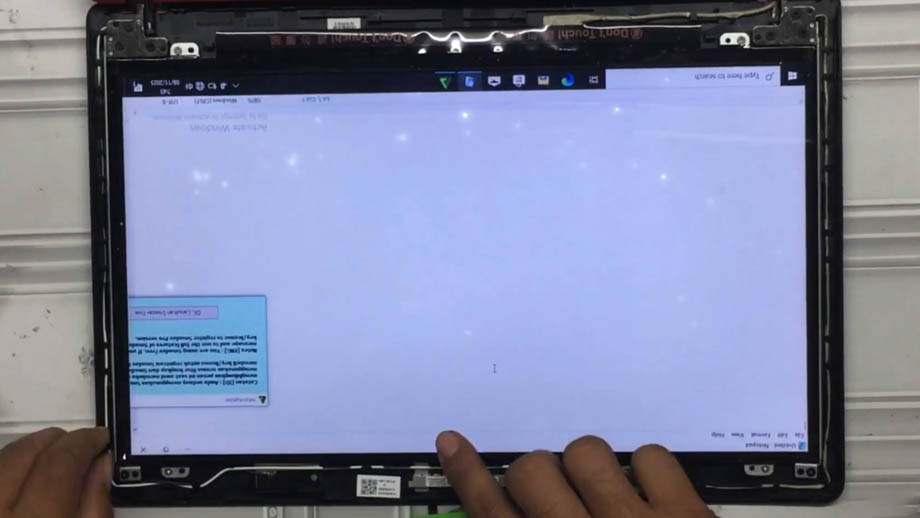
- Localized white patches: The display panel shows soft white circles, stripes, or other irregular white patches. If you press the affected area manually, the white patch may spread or move.
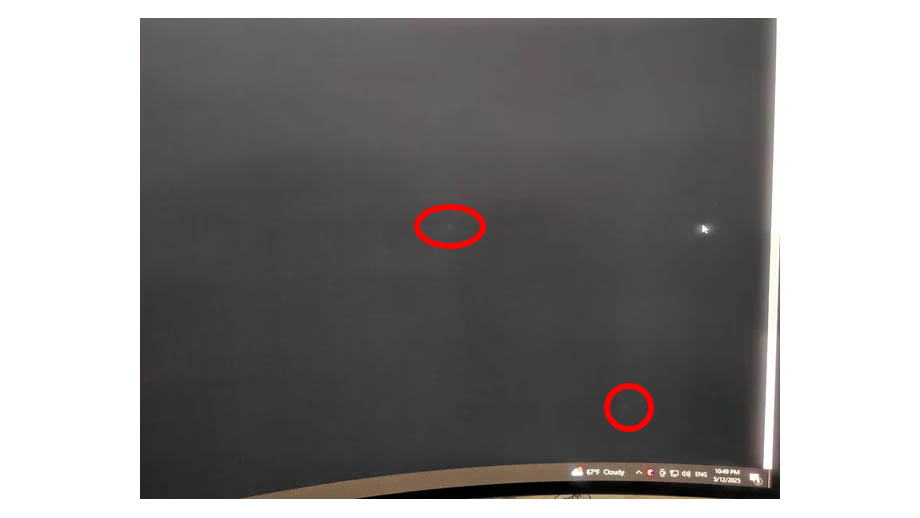
- Bright spots: A small bright spot appears on the screen. When the screen displays light-colored content, the spot appears distinctly white; when displaying dark-colored content, the spot appears dark or is barely visible to the naked eye.
- Sharp white dots (TFT LCD): These white dots are very small—possibly only 3 to 5 pixels in size—and remain clearly visible regardless of whether the screen displays light or dark content.
OLED Screens
- White spots: A single pixel remains continuously lit and does not change with the screen content, appearing as a small white dot that is highly noticeable in most color and dark scenes.
- Failed white dots: These initially appear as small white, gray, or colored dots and gradually expand in size over time.
- Bright white spots: The brightness of the affected area is higher than that of the rest of the screen; sometimes, a slight color cast may occur—such as a blue or red tint—and these spots primarily appear in corners, along edges, or in areas displaying menus or program logos.
LED Display
- White spots: A single pixel appears as a small white dot; this LED lamp does not change in response to the screen’s content.
- High-brightness LEDs: A single LED lamp emits white light or light with a slight color cast continuously; its brightness is significantly higher than that of the surrounding area, creating a glaring spot.
- Block-like bright spots: The brightness of a single LED module is higher than that of other LED modules on the screen, forming a conspicuous bright spot.
- White dark spots: Small, non-luminous white dots appear on the screen surface; these are usually not noticeable when the display is powered on and showing content, but are very obvious when the screen is turned off.
Mini LED Display
- Soft, white, fog-like patches: Large, fog-like patches with blurred edges appear at the boundaries between light and dark areas of the displayed image.
- Pronounced bright spots: The brightness in a specific area of the screen is noticeably higher than in other areas, regardless of the displayed content.
- Bright or dark spots: Small bright or dark spots appear on the display panel.
- Abnormal white spots on the screen: These are unrelated to the displayed content and result from dust or impurities trapped in the display’s backlight assembly, which impair the viewing experience.
Appearance and Causes of White Spots in Different Display Types: Quick Reference Table
| Display Type | White Spot Condition | Causes of White Spots |
| LCD | Soft white circles, stripes, or irregular white patches | Deformation or aging of the polarizing film |
| Small bright spots | Foreign objects in the backlight assembly, scratches on the light guide plate, or wrinkles in the brightness-enhancing film | |
| Sharp small white dots (TFT LCD) | Short circuit or leakage in a single TFT | |
| OLED Screen | Persistent bright white spots | Damaged TFT capacitors |
| Failed white spots | Moisture or oxygen from the air entering the organic light-emitting layer, damaging organic pixels | |
| Bright white spots | Screen burn-in caused by displaying the same pattern for an extended period | |
| LED Display | Small white spots | Damaged LEDs |
| A single glaring LED lamp | Damaged driver IC or unstable IC circuit connections | |
| Block-shaped bright spots | Abnormalities in the LED module’s IC or receiver card | |
| White dark spots | Aged or damaged faceplate; deformation of the regional splicing structure | |
| Mini LED Display | Soft, foggy white patches | Firmware or driver algorithm errors |
| Distinct bright spots | Failure of the Mini LED circuitry in the backlight layer; IC failure | |
| Bright or dark spots | Damaged backlight LEDs | |
| Abnormal white spots on the screen | Scratches on the light guide plate; wrinkles in the diffusion film | |
| E-ink Display | Sharp white spots | Abnormal internal screen electrodes; damaged microcapsules |
Why Do White Spots Appear on Displays?
White spots on displays may result from quality defects present before the screen left the factory, or they may be caused by physical damage sustained during use. Understanding the causes of white spots helps us quickly identify the root cause and repair the issue.
Manufacturing Defects
During the display manufacturing process, improper handling by workers in the supplier’s production facility can result in screens leaving the factory with white spot defects. Taking LCDs as an example—since most computer monitors and TVs used in daily life are LCDs—potential manufacturing defects that may be present at the time of shipment include:
- Improper TFT Installation: Most LCDs on the market today use thin-film transistors (TFTs) to control pixel imaging. Active-matrix LCDs offer faster response times and better image quality. However, if the TFT is improperly soldered or has quality issues during production, it may later experience short circuits or current leakage, causing individual pixels to remain constantly lit—resulting in white spots on the screen.
- Polarizer Stains or Defects: During production, improper cleaning may cause dust or adhesive to adhere to the polarizer, resulting in white spots on the screen. Alternatively, quality issues with the polarizer itself—such as dents, bubbles, or creases—can also cause abnormal pixel brightness in certain areas, forming white spots.
- Creases in the brightness-enhancing film: Creases in the brightness-enhancing film can also cause a specific area of the screen to be excessively bright, resulting in white spots.
In addition to active-matrix LCD and active-matrix mini-LED screens, where TFT defects can cause white spots, AMOLED screens are also susceptible to this issue.
For LED displays, physical manufacturing defects that can cause white spots include:
- Electrical failure of the LED lamp.
- Unstable or damaged driver IC connections, resulting in the inability to control the LED lamps.
- Faults or compatibility issues with the receiver card, causing abnormal display output from the module.
- Poor soldering on the PCB, leading to abnormal operation of the driver ICs and LED lamps.
Therefore, when purchasing display screens, it is crucial to choose a supplier with rigorous quality control. For example, a professional manufacturer like JYLED, with 8 years of experience, can minimize production defects in LED modules and prevent white spots or other display issues on LED screens.
Additionally, when you receive the display, power it on and check the panel for white spots or other defects. This allows you to identify any equipment defects promptly, contact after-sales support for resolution, and protect your rights as a consumer.
Physical Damage During Installation and Use
If you apply pressure or cause physical damage to the display panel during installation or use, this may also result in white spots on the panel:
- Physical Compression: This primarily applies to LCD screens, especially laptop screens that are frequently opened and closed. Physical compression can alter the thickness of the liquid crystal layer or deform the polarizing film, resulting in abnormal brightness in certain areas—that is, white spots on the screen.
- Screen Damage from Drops: Handheld devices, such as smartphones, tablets, and laptops, may suffer damage to the liquid crystal layer or other display components if accidentally dropped on the ground, leading to localized white spots.
- Excessive Cleaning: Wiping the screen too vigorously can also damage the polarizing film, resulting in white spots.
Material Aging After Prolonged Use
During operation, LED displays generate relatively little heat and maintain stable component performance. However, after 4 to 6 years of operation, LED lamps may experience some lumen depreciation, leading to a slight decrease in panel brightness. Aside from this, LED screens generally do not suffer from component aging or damage.
However, LCD and OLED screens have higher heat generation, and their internal components are prone to aging and damage, leading to display abnormalities:
- The organic materials in OLED screens are prone to aging and degradation after a certain period of use, and since different areas age at different rates, this can result in white dots or white spots on the display.
- Aged polarizing films in LCD screens can cause white spots.
- Aged light guides in LCD screens can cause uneven light emission, resulting in white spots in certain areas of the screen.
Component Damage Caused by Harsh Environments
If the environment contains high levels of moisture or dust, these substances may penetrate the screen, forming water stains or spots, or causing other components to become damaged or contaminated, resulting in display abnormalities.
Excessively high ambient temperatures can also accelerate the aging of LCD and OLED screens, leading to the formation of more white spots.
Compatibility Issues
Some monitors may not have any inherent faults, but after powering on, white spots or patches may appear on the screen. This could be due to compatibility issues with the screen’s transmission lines or software, causing the screen to display incorrectly.
For example, in a Reddit post titled “White spots on screen… do they get bigger over time?”, one user mentioned that his monitor had no issues on its own; when connected via an HDMI cable, the screen displayed images normally, but when connected via a DisplayPort (DP) cable, a white spot appeared on the screen.
Circuit Malfunctions
Abnormalities in the display’s internal circuitry or issues with the power supply connected to the display can both lead to display abnormalities:
- A loose or faulty display flex cable may cause flickering white spots on the screen.
- A short circuit or damage to the driver IC circuit can cause some pixels to remain constantly lit, resulting in white spots.
Summary Table of Causes for White Spots on Displays
| Causes of White Spots on the Screen | Details |
| Manufacturing Defects | TFT failure, polarizer defects, LED failure, driver IC failure, PCB circuit failure |
| Physical Damage During Use | Physical compression, drops, excessive cleaning |
| Screen Aging | Degradation of organic materials, aging of the polarizer, aging of the light guide plate, pixel light decay |
| Harsh Environments | High levels of moisture and dust in the environment contaminating internal screen components; high-temperature environments accelerate screen aging |
| Compatibility Issues | Hardware incompatibility, software incompatibility, content source signal incompatibility |
| Circuit Failures | Electrical short circuits, short circuits in the driver IC circuitry |

How to Detect White Spots on the Screen?
Generally, white spots on the screen can be detected simply by visual inspection. However, if you wish to conduct a more precise assessment of the severity of the white spots, you can use the following methods:
Display a Solid-Color Screen
If the screen displays a cluttered background, it can interfere with your ability to identify white spots. Therefore, we recommend adjusting the screen to display different solid colors to more easily detect white spots or white patches on the display panel.
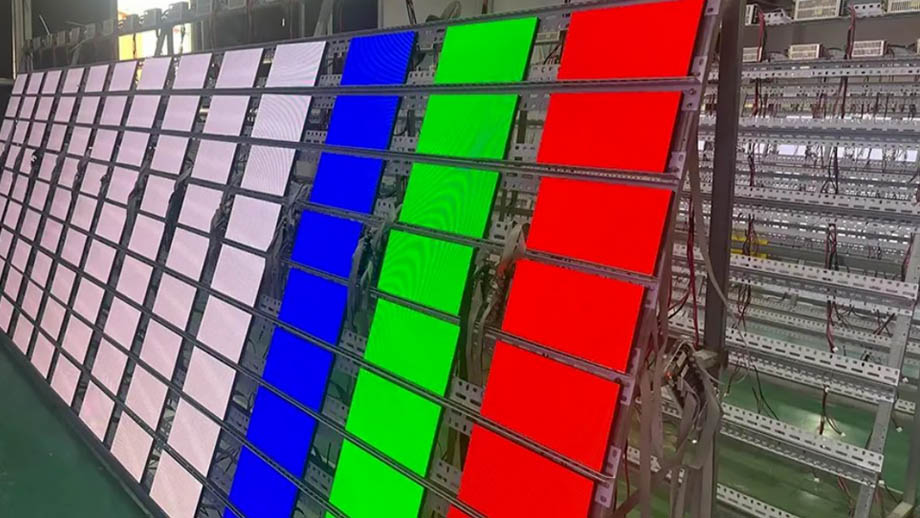
For example, at JYLED’s factory, LED displays undergo aging tests before shipment. All LED modules are set to display pure blue, red, green, and white images. After 48 hours of alternating solid-color displays, the screens are inspected for white spots, black spots, and uneven brightness, and defective LED modules with white spots or dark spots are identified and removed.
Software-Based Inspection
You can also use specialized software and a camera to inspect the screen’s color consistency and brightness uniformity, which serves as a basis for determining whether the screen has white spots or other display anomalies. If the white spots are not caused by physical damage, you can also try using software to repair them.
How to Repair White Spots on Different Types of Screens?
How to Repair White Spots on an LCD TV?
Identifying the Type of White Spot
If your display is an LCD, you first need to determine the type of white spot. It may be caused by:
- Damage to the backlight assembly, such as damage to the polarizing film or light guide plate.
- Stains caused by dust or adhesive residue.
- Pixel display abnormalities caused by a TFT short circuit.
Cleaning the Screen
If there are stains or adhesive residue on the screen surface, you can use cleaning tools to clean the screen. Please note the following:
- Use plain water or a professional screen cleaner whenever possible. Do not use alcohol or glass cleaner, as these may damage the LCD’s polarizing film.
- Clean as gently as possible to avoid causing physical damage to the screen from pressure.
Inspect the Diffuser and Backlight
If the issue is caused by a TFT failure inside the LCD or a malfunction in the backlight assembly, attempting to repair these components yourself is not recommended. First, you likely do not have a sufficiently clean environment, which could lead to further contamination inside the screen. Second, the repair requires advanced technical expertise, and attempting a DIY repair may result in further damage to the screen.
Therefore, you should immediately contact the supplier and return the screen to the manufacturer for professional repair.
Gentle Pressure Adjustment
Creases in the brightness-enhancing film or light guide plate on some screens can be resolved by gently pressing the screen. You can try wrapping your fingertip in a lint-free cloth and gently pressing the area with the white spot, working gradually from the edges toward the center.
Please note that applying excessive pressure may damage the screen and void the warranty; use this method with caution.
How to Fix White Spots on an LED Display?
Identifying the Type of White Spot
If your display is an LED screen, you first need to determine the type of white spot:
- White spots caused by a faulty LED lamp.
- White spots caused by circuit failures, such as in the driver IC or circuit board.
- Software or firmware compatibility issues.
Replacing an LED Lamp
If the LED lamps were damaged by impact during installation, or if a single LED lamp has failed for other reasons, you can use tools to replace the faulty LED lamp directly.
Note: This method is only suitable for SMD LED modules and DIP LED modules. COB LED modules and GOB LED modules are covered with a transparent epoxy resin layer, so you cannot replace a faulty LED on your own; you’ll need to replace the entire module instead.
Replacing Modules or the Power Supply
When an LED module is excessively bright or displays abnormally, the issue may stem from a faulty driver IC on the module, a circuit malfunction on the PCB, or problems with the power supply connector or flex cable. You’ll need to troubleshoot each possibility based on the symptoms or actual issue.
If the problem lies with the power supply or wiring, replace the corresponding components; if it’s a driver IC or PCB issue, replace the entire LED module with a spare.
Color and Brightness Calibration
If there are brightness abnormalities in individual pixels or across multiple LED modules within a specific area, you can try performing brightness and color calibration to achieve a uniform display across the screen.
How to Fix White Spots on OLED Screens in Laptops, Smartphones, and Other Devices?
Identifying the Type of White Spot
If your display is an OLED screen, you first need to determine the type of white spot:
- Localized brightness unevenness caused by screen aging.
- A white spot caused by a single pixel failure due to oxidation or malfunction.
- A white spot caused by a driver circuit failure resulting in a pixel that remains constantly lit.
Cleaning the Screen
Clean the screen gently to avoid letting dust or adhesive residue interfere with your assessment of the white spot’s extent.
Contact the Manufacturer for Repair
If the issue is caused by screen aging, pixel degradation, or damage to the driver circuit, it is generally impossible to repair an OLED screen on your own at home. In such cases, we recommend contacting the manufacturer and sending the screen back for repair.
Summary Table of Solutions for White Spots on Screens: A 30-Second Quick Guide
| Causes of White Spots | Solutions for White Spots |
| Dust or stains caused by adhesive | Clean the screen |
| Creases in the screen protector | Try gently pressing the screen |
| TFT failure, circuit failure, component aging | Return to the manufacturer for repair |
| Software, firmware, or signal compatibility issues | Replace the connected device, adjust the content format, or update the software |
| LED lamp failure | Replace the LED lamp |
| Driver IC or PCB failure | Replace the LED module |
| Abnormal brightness or color in a single LED | Use software to calibrate the screen’s color and brightness |
| Power supply issues | Adjust the power supply voltage or replace the power supply |

How to Prevent White Spots on Displays?
- Avoid Physical Impacts: Displays are electronic devices, and all their electronic components are relatively fragile. While physical impacts may not necessarily damage the device, they can significantly affect display performance. Therefore, when using display devices, we should take precautions to prevent physical impacts from causing negative effects.
- Install a Screen Protector: During daily use, screens are inevitably touched and exposed to minor impacts. Applying a screen protector in advance can effectively safeguard the screen’s surface and maintain optimal visual quality.
- Effective Heat Dissipation: For OLED and LCD screens, components are prone to aging, and excessively high internal temperatures can accelerate this process, leading to white spots. You can slow down the aging process by adding adequate heat dissipation to the display.
- Use Displays with Higher Protection Ratings: Dust and moisture entering the display can cause white spots resembling stains. Choosing a display with a higher protection rating can prevent dust from entering the interior. For example, outdoor LED displays with an IP65 protection rating can effectively prevent moisture and dust from entering the screen.
- Regular Cleaning: Regularly cleaning the screen prevents dust and water stains from forming stubborn white spots that affect the display’s performance.
- Inspect the Product Before Purchase: When purchasing a display, you should power it on and test it in the store to check for display stability, image quality, and the presence of white spots. This helps avoid discovering defects after purchase, which can make it difficult to protect your rights.
FAQ
What Is the Difference Between White Spots, Bright Spots, Dead Pixels, and Dark Spots?
White spots typically refer to small, constantly lit white dots or white areas on the screen. Bright spots refer to a single pixel emitting red, blue, or green light. Dead pixels refer to a single pixel that is damaged and does not emit light or remains constantly lit. Dark spots refer to a single pixel that is damaged and cannot emit light.
Will White Spots on the Screen Spread or Become More Severe?
Generally, white spots on a display do not spread. However, as the screen ages and the number of screen defects increases, the number of white spots may also increase. If white spots or white patches are caused by OLED screen aging, they will expand over time.
Are White Spots on a Screen Covered by the Warranty?
If you want the supplier to provide white spot repair services, the following two conditions must be met:
- The screen was purchased within the warranty period promised by the supplier.
- The white spots were not caused by accidental damage.
Are the Repair Costs for White Spots on a Screen High?
Repair costs vary depending on the type of display and the cause of the white spots. You should inquire about repair costs based on your specific situation. If you have any related needs, please contact JYLED staff for more information.
Is It Worth Buying a Used Screen with White Spots?
Used displays are more affordable than brand-new ones, but not all used screens are worth purchasing. We do not recommend purchasing screens with the following white spot conditions:
- White spots cover a large area and severely impair the viewing experience.
- White spots caused by aging in OLED screens are irreversible; we do not recommend purchasing such screens.
- If the damage inside the screen is caused by moisture or dust in the air, we do not recommend purchasing it, as the issue may continue to spread with continued use.
Can White Spots on a Screen Harm Your Eyes?
Generally speaking, white spots on a screen do not harm your eyes. However, if the white spots or white patches are excessively bright, they not only affect the viewing experience but may also cause visual fatigue more easily.
Summary
There are numerous causes for white spots on displays. After reading this article, you should now have a clearer understanding of how to fix white spots on screens, which should help you resolve most issues related to white spots that you encounter in daily life.
If you have further questions about troubleshooting LED displays, you can contact JYLED’s engineers via the contact information on the right side of the webpage for a free consultation.