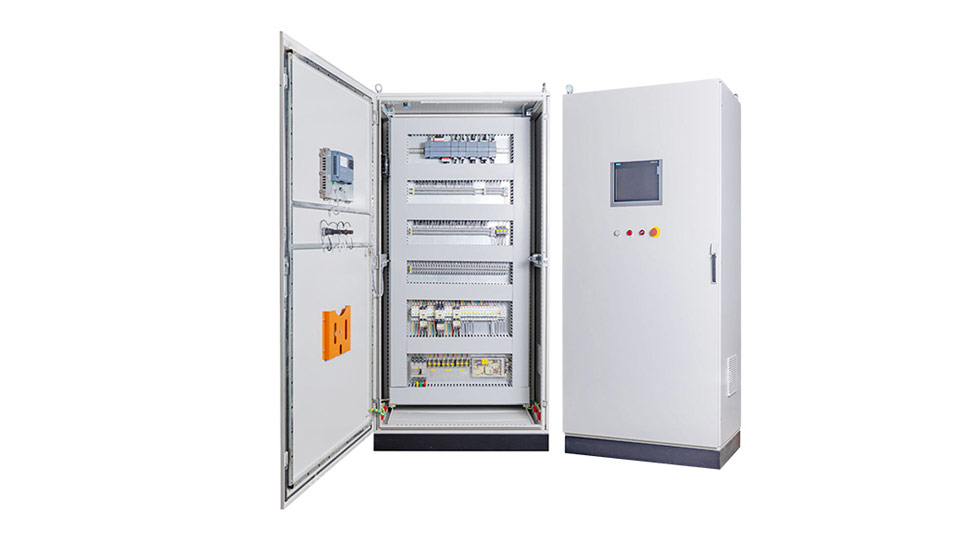



If you’ve purchased an LED display composed of LINSN control cards but aren’t sure how to control it or change content, no worries! Next, I’ll systematically explain how to use LEDStudio software to control your LED display.
What is LEDStudio?
LEDStudio is an LED display software developed by LINSN, exclusively compatible with Linsn LED display control systems. Using LINSN LEDStudio, you can edit videos and images on your LED display or play your favorite programs and TV series.
What are the features of LEDStudio?
LEDStudio software offers numerous advantages, providing you with great convenience.
First, LEDStudio allows seamless control and management of your LED display, making it extremely convenient and simple.
Second, LEDStudio’s interface boasts powerful functionality. You can adjust settings for brightness, contrast, color, and other features to achieve optimal performance and deliver the best possible visuals.
Third, LEDStudio empowers you to freely create and edit content displayed on your LED screen, showcasing vivid, flexible, and crisp visuals that deliver a truly immersive experience.
Finally, LEDStudio supports multiple multimedia formats, whereas other software often supports fewer formats and consequently offers more limited functionality.
What are the differences between the latest LEDStudio and previous versions?
The latest LEDStudio software version is 12.66. Let’s explore the major updates compared to earlier versions:
- With LEDStudio 12.66, you can edit other programs while simultaneously playing content on the LED display, a capability unavailable in previous versions.
- Compared to previous versions, LEDStudio 12.66 supports a wider range of multimedia formats.
- LEDStudio 12.66 offers one click factory reset, saving you considerable time. With earlier versions, restoring factory settings required manually clearing usage records step by step, a process far less convenient than the streamlined approach in LEDStudio 12.66.
- LEDStudio 12.66 introduces remote control functionality. Should you encounter difficulties while managing your LED display, technicians can remotely operate your screen from another location to troubleshoot issues, offering substantial convenience.
LEDStudio User Manual
Operating procedures remain consistent across different LED display models. This guide uses a P10 LED display as an example to explain connecting and controlling LEDStudio 12.66 with your display.
Preparation
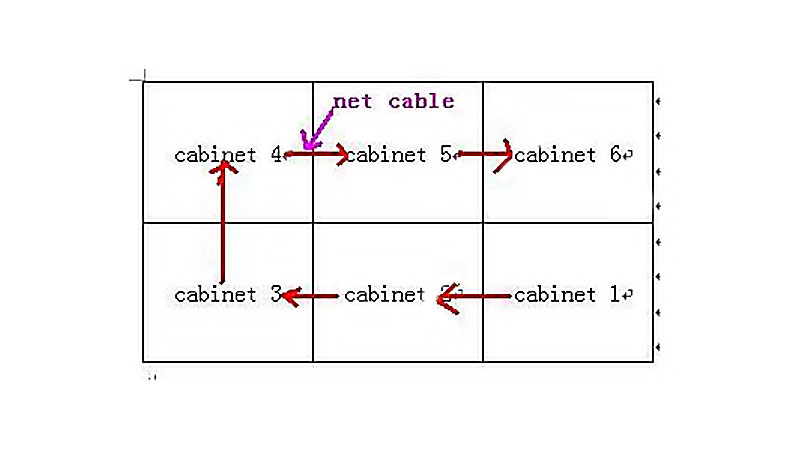
First, verify that the transmitter card and DVI card are properly installed. If not correctly seated, remove both cards and reinsert them into the LED cabinet. Once confirmed, connect cabinets 1, 2, 3, etc, sequentially using network cables.
Operation Process
After completing the preparation steps, follow these instructions to operate the LEDStudio software correctly:

Step 1: Download and install the LEDStudio software from the official Linsn website. Launch the software to access the main LEDStudio window. Locate and click the “Options” menu, then select “Software Setup” from the dropdown list.
Step 2: In the “Software Setup” window, click the “Combination/Synchronism Setting” button. Enter ‘linsn’ in the text field of the pop-up dialog and press Enter to proceed.
An “Input Password” dialog will appear. This is an engineer specific setting to prevent unauthorized modifications; enter the password to confirm. To proceed with debugging, enter the number “168” in the dialog box’s blank field and click the “OK” button.
Step 3: The “Set up hardware parameters” window will appear. Click the ‘Receiver’ tab in the menu bar, then locate and click the “Load from files” button below.

Step 4: Next, locate the p10.RCG file on your computer (Note: This example uses a P10 LED display for debugging; filenames may differ for other LED displays). Select it.
The file will automatically load into the program. Then click the “Send to receiver” button to transmit the program.
Step 5: After completing Step 4, the current window will first display a “Select card/box” dialog box. Click the “OK” button.
Immediately afterward, the “LedStudio” dialog box will appear. At the bottom of this dialog box, you will find two buttons: ‘Yes’ and “No.” Click “Yes” to proceed to the next step.
Step 6: You are still on the “Set up hardware parameters” page. Next, click the “Display connection” tab in the menu bar.
After entering the “Display connection” tab page, click the dropdown list next to the ‘Type’ option and select “real pixel display” to ensure the LED display shows actual pixels.
A crucial note here: if this is your first time connecting the display, enter the number “0” in the blank field for “Horizontal card.”
Step 7: After completing the above steps, you will see a window displaying the options selected in Step 6. Now, enter the number “3” in the “Horizontal card” field and the number ‘2’ in the “Vertical card” field.
Step 8: After entering the corresponding card numbers into their respective fields, you will notice six additional rectangular boxes of equal size appearing in the center of the window. Don’t worry,we’ll complete the following steps one by one.
First, click the bottom right rectangle among the six identical rectangular boxes.
Then, set both the “Width” and “Height” fields below to 96 centimeters for the cabinet dimensions.
Finally, starting from the bottom right corner and proceeding clockwise, click each of the remaining five boxes to set their cabinet height and width to the same values. This completes Step 8.
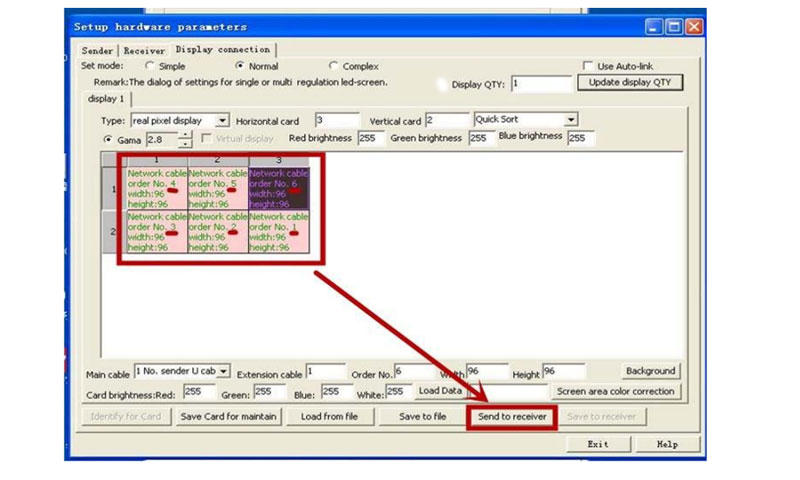
Step 9: After completing the width and height settings in Step 8, carefully verify that the sequential numbering of these six rectangular boxes matches the order in which you clicked them. If no errors are found, click the “Send to receiver” option below.
Step 10: After completing the operations in Step 9, return to the “Receiver” section in the menu bar. Click the “Send to receiver” option in the bottom right corner once more to send the data to the receiver again.
Then, return to the “Display connection” section in the menu bar. Click the “Send to receiver” option at the very bottom once more to send this information to the receiver again.
A “LedStudio” dialog box will appear. Click the “Yes” button at the bottom to ensure the LED display is running.
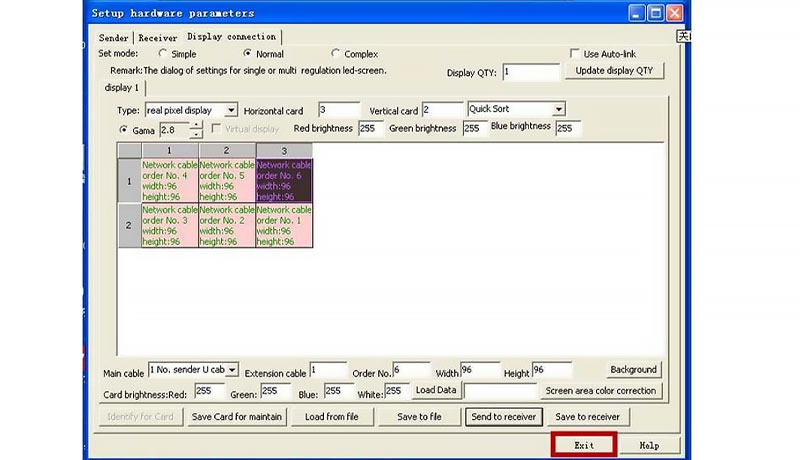
Step 11: You have now reached the final step. After completing all the above operations, remember to click the “Exit” option at the bottom of the “Set up hardware parameters” page to exit.
Then, click “Save setup” at the bottom of the “Software setup” page to save your settings and prevent data loss.
Summary
The above outlines the process for connecting and controlling LED displays using LEDStudio. By following these steps sequentially, you can successfully install the LEDStudio software.