


If you’re looking into software for remotely managing screen content, you’ve likely come across information about the VNNOX standard system. What features does this software support, and can it meet your needs for remote display management?
By reading this article, you’ll learn everything about the core features and usage of the VNNOX standard system, allowing you to quickly familiarize yourself with this application and learn how to remotely manage your displays.
What Is the VNNOX Standard System?
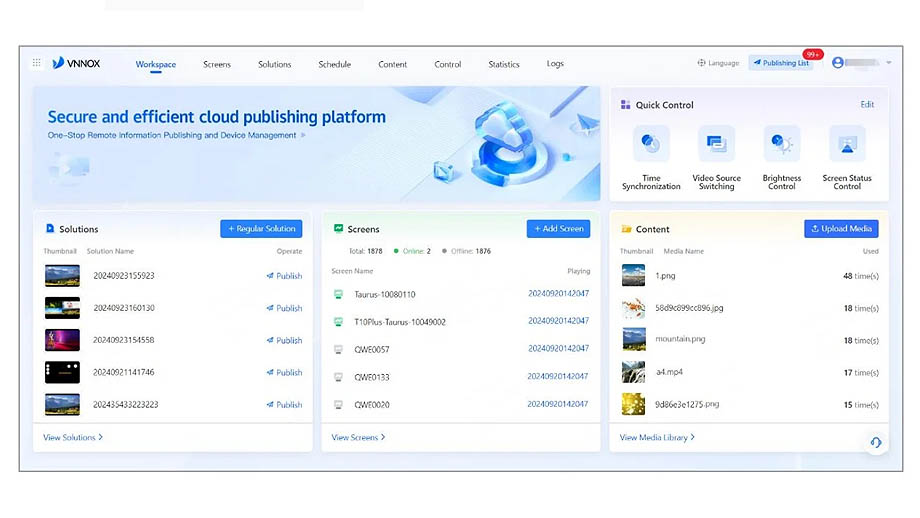
The VNNOX standard system is an online application developed by Novastar for the remote management and control of LED displays and LCDs. This online management program features a clean, user-friendly interface that allows even new users to get up to speed quickly.
It also supports a wide range of content editing and publishing features, enabling you to remotely control display content with a single click. Thanks to its comprehensive management capabilities and user-friendly interface, the VNNOX standard system is widely used in commercial settings, government agencies, exhibitions, and other venues.
What Are the Core Features of the VNNOX Standard System?
The VNNOX standard system features a lightweight design. This online application is extremely compact and has a simple, easy to use interface, yet it offers a wealth of control functions, providing you with a variety of convenient management tools. The core features of the VNNOX standard system include:
Remote Content Management
The VNNOX standard system supports a range of remote operations for display content, including publishing, transmitting, and replacing content. You can also control player parameters and startup status, such as adjusting brightness, volume, and other screen settings, and remotely restart players or update playback content online.
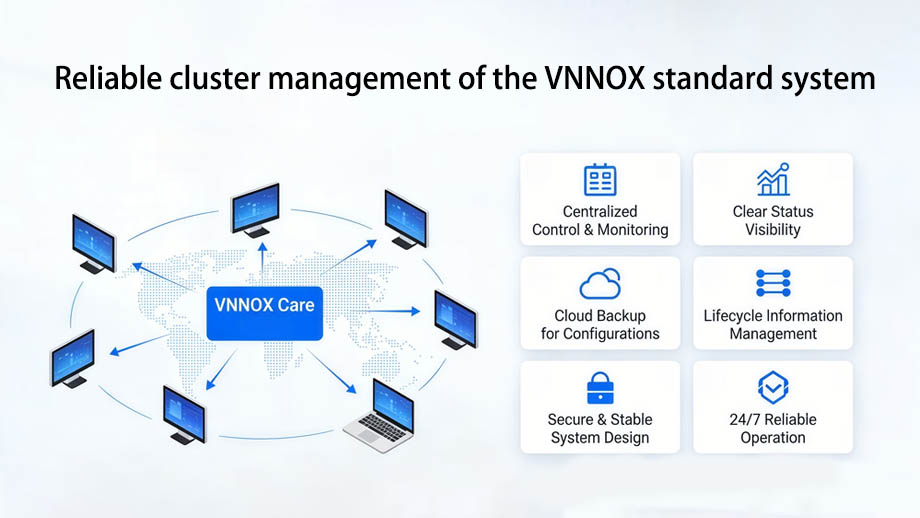
In addition, the VNNOX standard system supports remote cluster-based management of displays, making it ideal for multi-screen projects, such as LED screens in chain stores or pole LED screens, where multiple displays need to be managed.
Using traditional management methods to adjust screen content one by one would increase the workload for administrators and lead to low management efficiency. However, by using the VNNOX standard system, you can quickly manage content distribution across multiple screens with a single click, maximizing your work efficiency.
Real-Time Screen Status Monitoring
The online application enables real-time monitoring of display playback status. You can check the operational status of screens at any time, view the storage space usage of players, and promptly free up storage space to prevent player lag caused by excessive storage usage, which could lead to abnormal screen display.
The VNNOX standard system also allows you to view the display’s output via screenshots to verify that playback is functioning normally. If any abnormalities are detected, you can make timely adjustments to prevent further losses caused by prolonged abnormal playback.
Support for Connecting Multiple Devices
This online application is compatible with a variety of players from Novastar, such as the highly affordable Novastar Taurus series players or the more powerful, high-end Taurus Ultra series LED video controllers.
In addition to hardware, it supports integration with software such as VPlayer, ViPlex Express, and ViPlex Handy.
Flexible Online Media Library
The VNNOX standard system supports uploading multiple media files to create an online media library directly. When managing screen playback content via the application, you can access content from the online media library directly through a network connection, providing a rich resource for content distribution.
Online Editor
You can use the VNNOX standard system to edit content to be published on the display in real time, such as adjusting image parameters, cropping ratios, and image sizes.
The online application also supports simultaneous online editing of published content by multiple users, further improving work efficiency and ensuring the final editing quality of the content.
Custom Resource Grouping
Using the VNNOX standard system, you can accurately group different content source signals, playback schemes, and other information according to your needs. This allows for quick retrieval the next time you use the screen and helps you distinguish access permissions for different users regarding various resources.
Comprehensive User Permission Management
To ensure the security of information published on screens, the VNNOX standard system allows administrators to configure user permissions for the application.
Operational permissions can be divided into multiple levels, enabling different staff members to perform various management tasks, such as viewing, modifying, replacing content, and powering screens on or off, thereby ensuring stable screen operation and information security.
Pre-set Scheduling
The VNNOX standard system allows you to manage the playback order and time slots for multiple content items, as well as screen power-on and power-off times, in advance.
You can pre-deploy a schedule for display content and configure settings via the application, ensuring that subsequent screen playback strictly follows the plan without requiring manual adjustments, making content publishing more efficient and accurate.
| VNNOX Standard System Specifications | |
| Compatible Devices | Novastar Taurus Series Players, Taurus Ultra Series LED Video Controllers |
| Compatible Software | Synchronous playback supports VPlayer software; asynchronous playback supports ViPlex Express, ViPlex Handy, and other software |
| Key Features | Remote display management, content editing, cluster management, real-time monitoring, preset playback schedules, online media library, online editor, playback logging, customizable user permissions, resource grouping |
| Video Formats (Synchronous Control Mode) | MP4, AVI, RMVB, FLV, MKV, WMV, MOV |
| Video Formats (Synchronous Control Mode) | MP4, AVI, FLV, WMV, MOV, MP3 (for background music only) |
| Image Formats | JPG, PNG, ICO, JPEG, BMP, GIF |
| Documents | Word, Excel, PPT, PDF |
| Other Multimedia Files | Web pages, RSS, streaming media |
| Other Media Components | Analog clock, digital clock, text, weather, calendar, window, colored text |
How to Use the VNNOX Standard System?
If you are new to this application and have never used the VNNOX standard system before, please read this section. We will guide you through using the software with some simple step-by-step instructions.
Step 1: Register and Log In to VNNOX
First, go to www.en.vnnox.com and register as a user of the VNNOX standard system.
Once registration is complete, return to that URL, click “Log In,” select an appropriate server node, and proceed. Enter the username and password you used when registering your VNNOX account, drag the slider to complete verification, and log in to the interface.
Step 2: Configure and Bind the Player
After entering the VNNOX standard system, you need to connect and bind the player you are using.
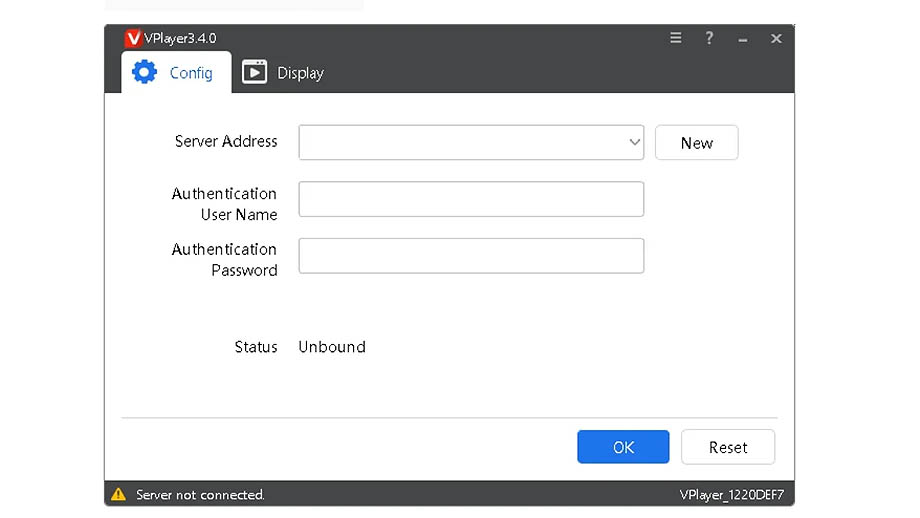
You can choose to bind the player using the server address:
On the configuration interface, click “New” to create a server, then enter the same server address as VNNOX. Enter your username and password to verify your identity, and click “Confirm” to successfully bind the user to the player.
Alternatively, you can bind the player using the device serial number:
Open the VNNOX workspace, select “Add Screen,” enter the player’s SN, then click “Next.” Once the network configuration is complete, you can activate and bind the player.
Step 3: Upload Media Files
The standard edition of the VNNOX system supports 5 GB of storage capacity. You can upload the multimedia files you need to VNNOX in advance via the network to create an online media library.
Click the VNNOX menu bar, select “Content,” and then click “Upload Media.” From your local storage, select multimedia files such as videos, images, and documents, open the files, and upload them. You can also add tags to files and create workgroups.
When you need to use assets from the media library later, you can access them directly online without having to re-upload the files.
Step 4: Create and Edit Programs
On the “Solutions” interface, locate “New Solution,” click “New Solution,” and select the type of solution you want to create. Available options include standard screens, extra-long screens, and video wall screens.
Name the new solution and set the resolution. Standard screens support smart tag matching, while video wall screens require additional configuration of row and column parameters.
Step 5: Add a Playlist Schedule
On the VNNOX “Schedule” interface, click “Create” to create a schedule. Then click “Add Solution,” select the screen type, and click “OK.”
In the menu bar, locate “Screens,” click “Screen List,” select one or more screens, and click “Add Tag” to create screen groups. Content can be played sequentially based on the group order.
Step 6: Select Target Players
You can find the player list by clicking the “Publish” button in the content solution you created. Select one or more players, click “OK,” and the content will play on the selected players and their corresponding screens.
Step 7: Publish the Program or Schedule
Use the page properties panel to adjust the program’s playback schedule. After setting the start and end times, the page’s content will play according to the specified schedule. Once the scheduled time has elapsed, the page’s content will automatically skip to the next item and will no longer play.
If you schedule this page’s playback time to overlap with the playback time of other pages, the screens will play the content sequentially in the order the pages appear.
Step 8: Check Download and Playback Status
After officially publishing the program, a pop-up window will display a progress bar indicating the status of content transmission. If there are issues with content transmission, you can directly test the network and view the network test report.
After publishing the program, you can view the playback results via screenshots from the online program and adjust the screen playback settings as needed.
Step 9: Remotely Adjust Screen or Player Settings
From the VNNOX menu bar, select “Control,” then locate the screen settings you wish to adjust, such as “Brightness Control” or “Volume Control.” Drag the sliders to adjust the settings, then click “Apply” to have the screen display the content using the updated settings.
Step 10: View Playback and Control Logs
In the VNNOX menu bar, locate “Statistics” and click to view the total number of programs, the number of online screens, the number of offline screens, and the screen playback statistics for the current day. You can also set a time range to view screen playback statistics for a specific day, month, or year.
Click “Logs” in the VNNOX menu bar, then click “Remote Control Logs” and select the player for which you want to view control records. You can view control data by selecting the type of control command or use the advanced search to find relevant control data.
FAQ
Is the VNNOX Standard System Free?
Yes, the VNNOX standard system is free to use. You can log in directly via the web to use the system. If you need the user manual for this online system, you can download it from the Novastar official website.
What Multimedia Formats Does The VNNOX Standard System Support?
The VNNOX standard system offers strong compatibility and can work with common multimedia files on the market, such as text, video, images, weather, temperature, web pages, RSS feeds, and streaming media files.
Can the VNNOX Standard System Be Set to Turn on And Off Automatically?
Yes, the VNNOX standard system supports customizing the display’s power-on and power-off times. Once configured, the screen will automatically turn on or off during the set time periods, helping you save on unnecessary energy consumption and reduce operating costs.
Does the VNNOX Standard System Need to Be Used With a Novastar Player?
Yes. Currently, the VNNOX standard system is not compatible with media players or controllers from other brands; you must use it in conjunction with media players and controllers from Novastar.
Can the VNNOX Standard System Automatically Record Playback Logs?
Yes, the VNNOX standard system supports automatic recording of screen playback logs, compiling and storing both playback and control information to facilitate subsequent review and management of screen content.
Summary
The VNNOX standard system is a lightweight yet powerful remote screen management application that requires use with a Novastar media player or controller.
It allows you to remotely adjust screen content and playback parameters, as well as manage screens in clusters, making it the ideal online management solution for displays in remote locations and clustered display setups.